Fast Copy MT4/MT5 Installation Guide for MetaTrader 4/5
Data di pubblicazione: 19.12.2024
Installing the Files (Steps 1–4)
- Download the archive. After purchasing or activating the trial period, download the program archive from your personal account on notmql5.com.
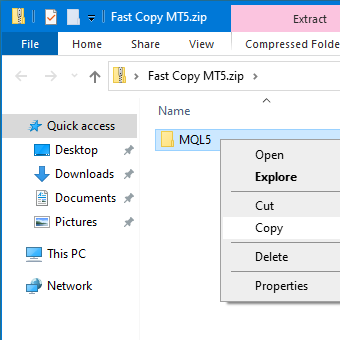
- Open the archive. Locate the downloaded ZIP file and open it. Inside, you will see an MQL4 or MQL5 folder (or both).
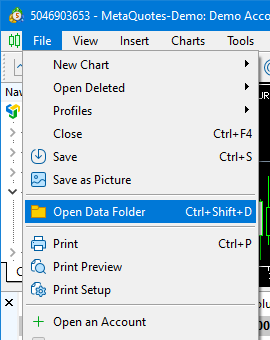
- Open the MetaTrader data folder. Launch your MetaTrader terminal. In the main menu, select (File) → (Open Data Folder).
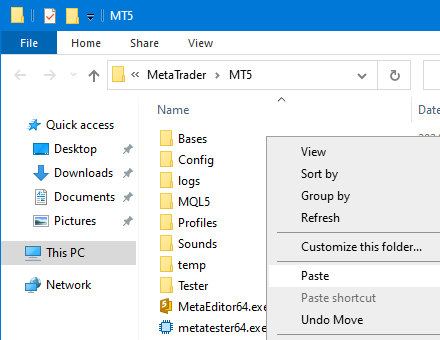
- Copy the files. Copy the MQL4 (or MQL5) folder from the archive into the opened terminal data folder. If prompted to replace files, choose (Copy with replacement) or (Merge folders).
Launching and Activation (Steps 5–8)
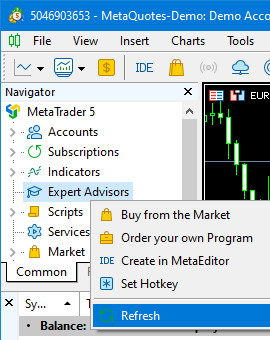
- Refresh the list of Expert Advisors. In the (Navigator) window of the terminal, right-click and select (Refresh), or simply restart the terminal.
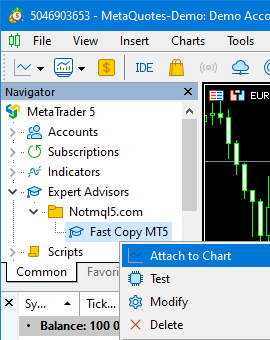
- Launch the program. Find Fast Copy in the list of Expert Advisors (in the Expert Advisors section) and drag it onto any chart (e.g., EURUSD).
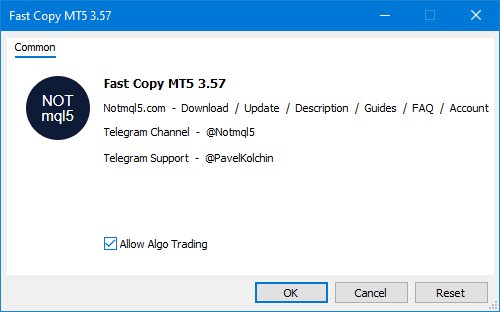
- Allow algorithmic trading. In the program properties window that appears, check the (Allow Algo Trading) box and click (OK).
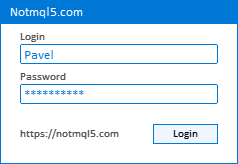
- Enter your login details. In the program window that opens (on the chart), enter your (Login) and (Password) from your notmql5.com account. The program will verify your subscription and activate.
Final Terminal Settings (Steps 9–12)
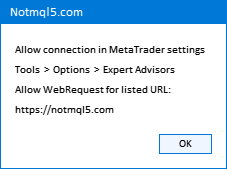
- Check the connection. If MetaTrader is not configured, the program will show a connection error after you enter your login details.
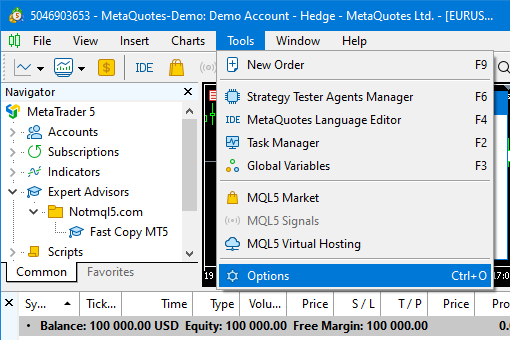
- Open the terminal settings. Go to the terminal menu: (Tools) → (Options).
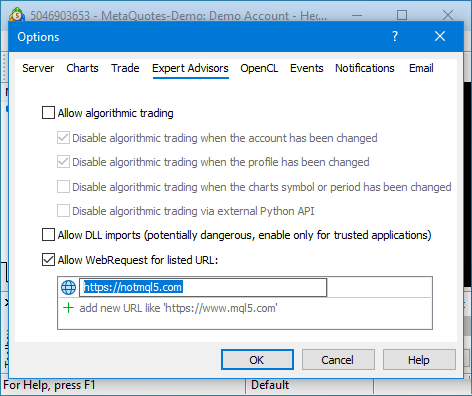
- Grant permission. Go to the (Expert Advisors) tab. Check the box (Allow WebRequest for listed URL:). Below, enter the address: (https://notmql5.com). Click (OK).
- Done! After these settings, the program will load all necessary data, and you will see the status information on the chart.
 notmql5